
Limited-Time Offer: Enjoy 50% Savings! Ends in 00h 00m 00s Coupon code: 50OFF
Skip to content

Free Adobe Workfront Fusion Developer Professional AD0-E902 Exam Questions

Page: 1 / 6 Total 51 questions

Want more questions? Get Premium Access.

Question 1

Which statement about Workfront Fusion templates is accurate?

Correct Answer: C. Fusion templates allow a user to swap connections in commonly used scenarios to support multiple team automations
Explanation:

Understanding the Role of Fusion Templates:

Fusion templates are prebuilt scenario structures designed to help users set up automations efficiently by reusing common workflows.

They are flexible and can be customized based on the organization's requirements.

Why Option C is Correct:

Swap Connections:

Fusion templates allow users to replace connections (e.g., API connections, authentication tokens) to adapt the scenario for different teams, departments, or environments.

This makes templates versatile for reuse in scenarios where the logic remains the same, but the data sources or destinations differ.

Why the Other Options are Incorrect:

Option A ('Fusion templates are publicly shared scenarios for enterprise-level customers'):

Fusion templates are not public. They are created by users or Workfront admins for internal use within organizations.

Option B ('Fusion templates are only created and shared by Workfront'):

While Workfront provides some default templates, users can also create custom templates tailored to their needs.

Option D ('Fusion templates help customers build Workfront automations using simple walk-through guides'):

Fusion templates do not include walkthrough guides. They are structural frameworks for scenarios that users can modify or replicate.

How Fusion Templates Help:

Simplify repetitive workflows: Users don't need to recreate scenarios from scratch.

Enable scalability: Templates can be shared across teams for consistent processes.

Save time: By swapping connections, the same scenario logic can be used for different use cases.

Reference and Supporting Documentation:

Adobe Workfront Fusion Templates Documentation

Workfront Community: Best Practices for Fusion Templates

Fusion templates enable efficient automation setup by supporting reusable workflows with adaptable connections, making them a powerful tool for scaling team-level automation.
Question 2

A Fusion user needs to connect Workfront with a third-party system that does not have a dedicated app connector in Fusion.

What should the user do to build this integration?

Correct Answer: A. Determine the API structure and authentication protocols for the third-party system and then use the appropriate Universal Connector
Explanation:

Understanding the Requirement:

If a third-party system does not have a dedicated app connector in Workfront Fusion, users can still build an integration using Universal Connectors.

Universal Connectors in Fusion allow users to configure custom API calls, enabling communication with systems that lack pre-built integrations.

Steps to Build the Integration:

Determine the API Structure: Review the third-party system's API documentation to understand the available endpoints, data formats (e.g., JSON, XML), and request/response structure.

Identify Authentication Protocols: Determine how the third-party system handles authentication (e.g., API keys, OAuth 2.0, Basic Auth).

Configure the Universal Connector: Use modules like HTTP Request or Webhook to make API calls to the third-party system based on the documented structure.

Why Not Other Options?

B . Create a new connection to the third-party system in the connections area and then the Universal Connectors will be available for use: Creating a new connection in the connections area is only applicable for predefined connectors, not for Universal Connectors, which require manual configuration for unsupported systems.

C . Use the Workfront Custom API module to set up the connection using API calls to the third-party system: The Workfront Custom API module is specifically designed for Workfront's own API, not for connecting to third-party systems.


Adobe Workfront Fusion Documentation: Using Universal Connectors for Custom Integrations

Experience League Community: Integrating Third-Party Systems Using Workfront Fusion Universal Modules

Question 3

Which module must a user select to upload a document into Workfront and attach it to a task?

Correct Answer: B. Upload Document while setting the related record
Explanation:

Understanding the Requirement:

The user wants to upload a document into Workfront and attach it to a specific task.

This action involves creating a document in Workfront and associating it with a task as a related record.

Why Option B is Correct:

The Upload Document module is specifically designed for uploading files into Workfront.

It includes the ability to set a related record (e.g., a task, project, or issue) to which the document will be attached.

This ensures the document is uploaded and correctly linked to the task in a single operation.

Why the Other Options are Incorrect:

Option A ('Create Record for Document Version after Create Record for the document on the task'):

This involves multiple steps, which are unnecessary. The Upload Document module already handles both the upload and the attachment in one action.

Option C ('Create Record of Document type while setting the related record'):

The Create Record module is not designed for file uploads. It only creates metadata records, not the actual document.

Option D ('Miscellaneous Action to attach document to a task'):

There is no Miscellaneous Action specifically for attaching a document to a task. The Upload Document module is the appropriate choice.

Steps to Upload a Document in Workfront Fusion:

Add the Upload Document module to the scenario.

Specify the file to upload (e.g., from a previous module like Google Drive or an HTTP request).

Set the related record to the target task by providing its ID.

Run the scenario to upload and attach the document to the task.

Reference and Supporting Documentation:

Adobe Workfront Fusion: Upload Document Module

Workfront Community: Best Practices for Document Management in Fusion

The Upload Document module is the most efficient and accurate method for uploading and attaching a document to a task in Workfront.


Question 4

Which statement about the differences between instant and polling triggers is true?

Correct Answer: B. A user should use instant triggers when available because instant triggers allow Fusion to process bundles of data faster than polling triggers
Explanation:

Understanding Instant and Polling Triggers:

Instant Triggers:

Rely on webhooks to receive real-time data from a third-party system.

The external system sends a notification (webhook) to Fusion whenever an event occurs, triggering the scenario immediately.

Polling Triggers:

Regularly check (poll) the third-party system for new or updated records at scheduled intervals.

These are slower because they involve repeated API requests.

Why Option B is Correct:

Speed and Efficiency:

Instant triggers process data faster because they act immediately upon receiving a webhook. Polling triggers, on the other hand, may take time depending on the polling frequency and can result in unnecessary delays.

Reduced Load on Systems:

Instant triggers generate fewer API calls than polling triggers, which continuously check for new records even if no changes have occurred.

Best Practice: Use instant triggers whenever supported by the third-party system to ensure faster and more efficient scenario execution.

Why the Other Options are Incorrect:

Option A ('Instant triggers store received webhooks in a queue'):

Webhooks do not store data in a queue; they simply notify Fusion of events in real-time. Polling triggers also do not store records but remember the last processed record.

Option C ('A user must set up a webhook in Fusion'):

Instant triggers require setting up webhooks in the external system, not in Fusion. Fusion provides the webhook endpoint, but the user must configure the source system to send data.

Option D ('Only polling triggers can be set to run on a schedule'):

This is incorrect because instant triggers do not rely on schedules; they operate in real-time. Polling triggers, however, run on schedules and are used when instant triggers are unavailable.

Reference and Supporting Documentation:

Adobe Workfront Fusion Triggers Documentation

Workfront Community: Differences Between Instant and Polling Triggers

Instant triggers are the preferred option when available, as they provide real-time data processing with greater speed and efficiency than polling triggers.


Question 5

A source system should provide a Workfront task ID, but queries keep resulting in an error.

Which module helps determine if the task ID is valid?

Correct Answer: C. Search Record
Explanation:

To determine if a task ID is valid in Workfront, you can use the Search Record module. This module allows you to search for records, such as tasks, within Workfront based on a given ID.

Search Record Module:

This module can be used to search for a specific task in Workfront by its task ID.

If the task ID is valid, it will return the task details; if the task ID is invalid, it will return an error or no results.

The Search Record module is designed to check if a specific record exists in Workfront, making it ideal for verifying the validity of a task ID.

Why Not Other Options?

A . Read Record: This module reads a specific record by ID but does not search across multiple records. It may not provide the flexibility needed to check if a task ID is valid without knowing the exact task ID.

B . Read Related Record: This module is used to read a related record (e.g., reading the project related to a task). It is not suitable for validating a task ID directly.


Adobe Workfront Fusion Documentation: Search Record Module Usage

Experience League Community: Verifying Record IDs in Workfront Fusion

Question 6

A Fusion designer needs to create a Fusion scenario that will assign a user to each task with the Copywriter job role on a project.

Which method results in the fewest number of operations?

Correct Answer: C, C
Explanation:

Step by Step Comprehensive Detailed Explanation:

Scenario Context:

The goal is to assign a user to all tasks on a project where the role is Copywriter.

The chosen method should minimize the number of operations to ensure efficiency.

Option Analysis:

A . Searching for all assignments in the project where the role is Copywriter and add the user to each assignment:

This approach involves searching assignments, iterating through them, and adding the user individually. Each iteration generates multiple operations, making it less efficient.

B . Searching for Tasks in the project with the Copywriter role and assign the user to each task:

Similar to Option A, this approach also requires iterating through tasks and assigning users one by one, resulting in a higher number of operations.


Question 7

In a Fusion scenario, a new project in Workfront will trigger the creation of a new project in ServiceNow. The name of the project in ServiceNow will be constructed in the following format:

Two Digit Year - Reference Number - Project Name

Which expression will generate the correct string?

Correct Answer: C. concat(formatDate(now;YY) - referenceNumber - name)
Explanation:

Understanding the Requirement:

The desired output format for the project name in ServiceNow is: Two-Digit Year - Reference Number - Project Name

This requires dynamically constructing a string by combining:

The current year in a two-digit format.

The referenceNumber (a variable or input).

The name (a variable or input, likely the project name).

Why Option C is Correct:

The concat function combines multiple strings into a single string.

Expression:

concat(formatDate(now;YY), ' - ', referenceNumber, ' - ', name)

This ensures proper formatting with hyphens and spaces between the elements.

Breaking Down the Components:

formatDate(now;YY): Retrieves the current year in a two-digit format (e.g., '23' for 2023).

' - ': Adds the required separator.

referenceNumber: Dynamically adds the reference number.

name: Dynamically adds the project name.

Why the Other Options are Incorrect:

Option A ('formatDate(now;YY) - referenceNumber - name'):

This is not valid because it does not explicitly use a string concatenation function.

Option B ('join(formatDate(now;YY) - referenceNumber - name'):

The join function is used for concatenating elements of an array, not individual strings. Since the inputs are not in an array, this function will not work.

How This Solves the Problem:

The concat function correctly constructs the string with the desired format, dynamically generating the project name for ServiceNow based on the given inputs.

Reference and Supporting Documentation:

Adobe Workfront Fusion Functions Documentation

Workfront Community: Using the concat Function


Question 8

In a scenario that searches for recently completed tasks, a user notices the following input and output for a date transformation.

Input: March 3, 2021 10:34 AM Output: March 1, 2021 10:34 AM

Which expression produces this date transformation?

Correct Answer: A. subDays(now,2)
Explanation:

Understanding the Date Transformation:

Input: March 3, 2021, 10:34 AM

Output: March 1, 2021, 10:34 AM

The transformation subtracts 2 days from the input date without altering the time.

Why Option A is Correct:

subDays(now,2) subtracts exactly 2 days from the given date and time.

It preserves the time component of the input (10:34 AM) while shifting the date backward by 2 days, which matches the given output.

Why the Other Options are Incorrect:

Option B ('addHours(now; -48)'): While subtracting 48 hours also results in a 2-day difference, this approach directly modifies the time. The resulting time could shift if the operation crosses daylight saving changes or edge cases with leap seconds. It is less reliable compared to subDays.

Option C ('addDays(today; -4)'): This would subtract 4 days, which does not match the transformation shown in the example.

Reference and Supporting Documentation:

Adobe Workfront Fusion: Date and Time Functions

Workfront Community: Using Date and Time Expressions


Question 9

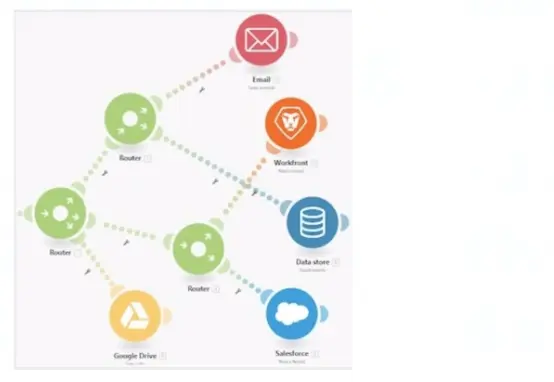
Refer to the exhibit.

In this image,

all items are displayed in a position that does not hide their execution sequence. In what order do the modules execute?

Correct Answer: D. Google Drive Google Drive > Email > Data Store > Workfront > Salesforce
Explanation:

Understanding the Diagram:

The image depicts a Workfront Fusion scenario using Routers to split and manage multiple execution paths.

Fusion executes modules in a left-to-right and top-to-bottom sequence along each path. Routers direct the flow to downstream modules.

Determining the Execution Sequence:

Path 1:

The first path begins with Google Drive. The Router branches out, directing execution sequentially to other modules.

Path 2:

The second path starts with Email and continues downwards through the remaining modules.

Order Within Branches:

After passing through a Router, each branch completes its sequence of modules before moving to the next Router.

Why Option D is Correct:

Execution begins from the leftmost module (Google Drive) and flows rightward. The sequence is as follows:

Google Drive

Email

Data Store

Workfront

Salesforce

This matches the visual layout and Fusion's execution rules for scenarios with Routers.

Why the Other Options are Incorrect:

Option A ('Google Drive > Email > Workfront > Data Store > Salesforce'):

Incorrect because Workfront does not precede Data Store in the execution order.

Option B ('Email > Workfront > Data Store > Salesforce > Google Drive'):

Incorrect because execution begins with Google Drive, not Email.

Option C ('Email > Data Store > Workfront > Salesforce'):

Incorrect because it excludes Google Drive as the starting point and places modules out of sequence.

Execution Rules in Workfront Fusion:

Fusion executes modules in the order they appear visually, starting from left to right and top to bottom within each branch.

Routers split the execution into separate branches, which are completed sequentially.

Reference and Supporting Documentation:

Adobe Workfront Fusion: Execution Flow Rules

Workfront Community: Understanding Router and Module Execution

The correct execution sequence is Google Drive > Email > Data Store > Workfront > Salesforce, ensuring all paths are processed as per the scenario's layout.


Question 10

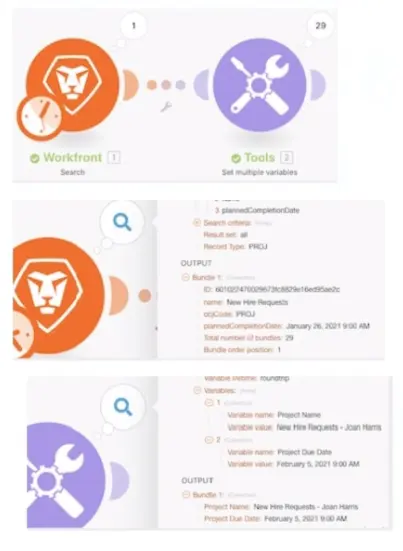
What information can be understood from the images of this bundle inspector?

Correct Answer: C. The first module delivered 29 bundles of data to the second module. Data manipulations happened in the second module to change the project name and planned completion date
Explanation:

Understanding the Scenario:

The scenario includes two modules:

Workfront Search Module: Fetches data (likely project details).

Tools Module: Manipulates and sets multiple variables.

What the Images Show:

Workfront Search Module (First Module):

The output indicates 29 bundles of project data were retrieved.

Each bundle contains fields such as ID, name, and plannedCompletionDate.

Tools Module (Second Module):

The data from the Workfront module is processed to set variables like Project Name and Project Due Date.

Output includes transformed values, such as appending the approver's name ('Joan Harris') to the project name and updating the project due date.

Why Option C is Correct:

Delivery of 29 Bundles: The Workfront module retrieved 29 project bundles and passed them to the Tools module.

Data Manipulation in Tools Module: The second module modified the data, such as appending 'Joan Harris' to the project name and updating the due date to a different value. This is evident from the changes in the output of the Tools module compared to the input from the Workfront module.

Why the Other Options are Incorrect:

Option A:

Incorrect because the Workfront module retrieved 29 bundles, not just 1 bundle. Additionally, the project name and planned completion date were manipulated in the second module, not the first.

Option B:

Incorrect because the retrieved data pertains to projects, not tasks.

Option D:

Incorrect because the input and output fields in the Tools module are not identical. The data was clearly manipulated within the Tools module.

How This Scenario Operates:

The Workfront module fetches raw data, which is then processed in the Tools module. The processed variables (e.g., modified project names and due dates) are prepared for further use in subsequent scenario steps.

Reference and Supporting Documentation:

Adobe Workfront Fusion Documentation: Bundle Inspector

Workfront Community: Using Tools Module for Data Manipulation

The correct interpretation is that the first module delivered 29 bundles to the second module, where data manipulations occurred to modify the project name and planned completion date.