
Limited-Time Offer: Enjoy 50% Savings! Ends in 00h 00m 00s Coupon code: 50OFF
Skip to content

Free Adobe Workfront for Experience Manager Enhanced Connector Expert AD0-E906 Exam Questions

Page: 1 / 6 Total 55 questions

Want more questions? Get Premium Access.

Question 1

An implementation consultant wants to configure the enhanced connector inside a customer's Adobe experience Manager environment. The customer has expressed interest in automatically publishing assets when they ore sent from Adobe Workfront to Adobe Experience Manager. The customer does no! have an instance of Brand Portal running.

The customer has a project custom form field with the following details:
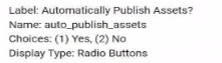
The customer wants this automatic publishing to be conditional on the value of the project custom form field being equal to, Yes.

Which option should be used to implement this feature?

Correct Answer: A. Check the option, 'Automatically publish assets when sent from Workfront' In the advanced tab of the configuration properties. In the Custom from field dropdown select. 'CUSTOM FORM auto_publiah_asset', and in the Custom from field value text box. write ''Yes'.
Explanation:

To implement conditional automatic publishing of assets from Workfront to AEM based on the value of the custom form field, you should:

Check the option 'Automatically publish assets when sent from Workfront': This ensures that the assets will be automatically published to AEM when they are sent from Workfront.

Use the custom form field ('auto_publish_assets'): The system needs to check the value of this custom form field, and if it is set to 'Yes', the assets will be automatically published.

Set the Custom Form Field Value to 'Yes': In the configuration, you'll specify that automatic publishing only occurs when the field value is 'Yes.'

Option B incorrectly refers to 'Workflow' instead of 'Workfront,' and Option C refers to publishing to Brand Portal, which is irrelevant since the customer does not have Brand Portal.

Refer to Workfront for AEM Enhanced Connector documentation for step-by-step guidance on configuring conditional automatic asset publishing.


Question 2

A proof is configured with a mull) stage automated workflow the design team often has to edit these proofs before they are moved to legal and financial for review. Which proof permission role do the design team members need?

Correct Answer: A. Author
Explanation:

The Author permission role is necessary for the design team members who need to edit the proofs before they are sent for review by legal and financial teams. This role allows them to make changes directly to the proof and upload new versions, which is essential for their work in this multi-stage automated workflow.

Author role: Grants permission to edit and manage the proof, which includes uploading new versions and making changes to the existing proof content.

Options B (Reviewer) and C (Approver) are more restrictive roles that do not allow for editing proofs.

Refer to Workfront Proofing roles and permissions documentation for more information on the different proof roles.


Question 3

An AEM server is overloaded with too many concurrently running workflows. The developer decides to reduce the number of concurrent workflows. What should be configured?

Correct Answer: A. Maximum Parallel jobs in OSGI console
Explanation:

In AEM, to limit the number of concurrent workflows running at the same time, you need to adjust the Maximum Parallel Jobs setting in the OSGI console. This setting controls how many workflow jobs can be processed simultaneously, and reducing this number will lower the load on the server by limiting the number of workflows that can run concurrently.

This setting can be found under the Day CQ Workflow - Workflow Engine configuration in the OSGI Web Console.

Options B and C refer to specific workflows and threads, but they do not directly address the overall system limit on concurrent workflow executions.

Refer to the AEM documentation on workflow scaling and performance for more information on how to adjust these settings in the OSGI configuration.


Question 4

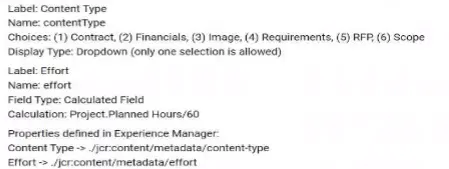
A solutions consultant needs to configure the enhanced connector for a customer. The customer has asked the solutions consultant to make sure that changes to metadata in Experience Manager will be synced back to Workfront on linked Workfront documents. Two of the fields that the customer wants synced are Content Type and Effort They are defined in workfront and Experience Manager as the following:

Document custom form fields in Workfront:

To accomplish this work, the solutions consultant configures a workflow model. The workflow model has a single step, Workfront-Map Property'.

What Property Assignments will make sure changes in Experience Manager are reflected in Workfront?

A)

B)

C)

Correct Answer: A. Option A
Explanation:

To ensure that changes in metadata in Adobe Experience Manager (AEM) are synced back to Workfront for the fields Content Type and Effort, the correct property assignment should map the Workfront custom form fields to the corresponding paths in the AEM JCR repository.

In Option A:

CUSTOM FORMS

is mapped to /jcr:content/metadata/content-type

CUSTOM FORMS

is mapped to /jcr:content/metadata/effort

This configuration ensures that changes made in AEM's content-type and effort metadata properties will be reflected in the respective custom fields in Workfront.

Options B and C use incorrect prefixes (e.g., 'DE:') and would not map the properties correctly for synchronization between Workfront and AEM.

Refer to the Workfront Enhanced Connector documentation for detailed instructions on configuring metadata synchronization between AEM and Workfront.


Question 5

A customer wants to support translations on AEM Cloud Service environment. They have an existing third party vendor who will provide a pre-build package that must be deployed to AEM so it can be leveraged as port of the workflow process.

How should the developer deploy this third party library onto AEM Cloud Service?

Correct Answer: A. Store the package as part of the customer code repository under the <url>file;$(mnven.multiModuleProjectDirectory)/install</url> folder and deploy it using Cloud Manager.
Explanation:

In Adobe Experience Manager (AEM) as a Cloud Service, deployments are handled through Cloud Manager, and all code, including third-party libraries, must be part of the versioned code repository. To deploy the third-party package provided by the vendor, it needs to be included as part of the AEM project's codebase under the install folder within the repository:

The package should be stored in the <url>file;$(maven.multiModuleProjectDirectory)/install</url> directory.

Once stored, the deployment will be handled through Cloud Manager's deployment pipeline.

This ensures the third-party package is included in the standard deployment process and follows AEMaaCS's immutable infrastructure model, which ensures that changes to environments are made only through deployments using Cloud Manager.

Option B is incorrect because installing a package directly to production via CRX Package Manager is not allowed in AEM as a Cloud Service. Option C would work for self-hosted AEM instances but not for AEMaaCS, where dependencies must be part of the Maven build.

For more information, refer to AEMaaCS deployment best practices and the Cloud Manager documentation.


Question 6

A company has a workflow where multiple people ate downloading and working on the same document simultaneously, which causes duplication of efforts. The company wants to use a document feature that will stop others from downloading the document when others are working on It.

Which document feature should De used?

Correct Answer: A. Go into the document details page and dick Check out
Explanation:

Workfront includes a document checkout feature that allows users to lock a document when it is being edited, preventing others from downloading or editing the file simultaneously. This feature effectively stops duplication of effort and ensures that only one person can work on a document at a time.

Document Checkout: By navigating to the document details page and clicking 'Check out,' the document will be locked for editing by the person who checked it out. Other users will be notified that the document is being edited, and they will not be able to download or make changes until it is checked back in.

Option B is incorrect because changing the document status to 'Unavailable' does not prevent downloading or editing. Option C, while helpful for communication, does not enforce restrictions, which could still lead to duplication of effort.

For more detailed information, refer to the Document Collaboration and Management section in the Adobe Workfront documentation, which outlines how the check-in/check-out system works.


Question 7

A company has multiple departments that use AEM assets, but would like only one of the departments to use a custom metadata schem

a. They want to add a 'verifiedBy' user picker field for its image assets.

What action should be taken to implement this requirement?

Correct Answer: C. Create a new metadata schema and extend the Coral UI Component to create a new user picker field
Explanation:

In this scenario, the company wants only one department to use a custom metadata schema with a 'verifiedBy' user picker field for image assets. The best approach is to:

Create a new metadata schema for the specific department.

Extend the Coral UI Component to create a custom user picker field, which will allow the department to select users from the list of available users in the system.

Option A suggests modifying the default image metadata schema, which could impact all departments, and Option B involves manually adding users to a dropdown, which is not as efficient as using a user picker field.

Refer to AEM documentation on creating custom metadata schemas and extending Coral UI components for more information.


Question 8

A user applies a custom metadata schema to a folder in AEM Assets However, the user receives an error message. "Unable to edit properties", when trying to save changes to one of the metadata properties for all assets within that folder.

What are two reasons for receiving this message? (Choose two.)

Correct Answer: A. The user does not have the Modify permission allowed for the folder.; D. The metadata property being modified is mapped to an invalid path.
Explanation:

There are two possible reasons for receiving the 'Unable to edit properties' error when trying to save metadata properties in AEM:

Insufficient Modify Permission: The user needs to have Modify permissions for the folder or assets within the folder to be able to edit the metadata. Without this permission, changes to metadata cannot be saved.

Invalid Metadata Path: If a metadata property in the schema is mapped to an invalid JCR path, AEM will not be able to save the changes. The system requires valid paths in the JCR to store metadata properties correctly, and any invalid path will result in an error.

Option B, involving asset locking, would prevent editing altogether rather than giving an error during property saving. Option C, mapping two properties to the same path, would result in overwriting issues rather than an error about saving properties.

For more details, refer to AEM's Metadata Schema documentation and permissions management.


Question 9

A developer created a custom metadata profile and assigned default values to some fields. The developer applied this custom profile to a folder in the DAM that already uses a different metadata profile. When viewing the metadata properties of the existing assets in a subfolder, the developer noticed that the custom metadata profile was not applied to these assets.

What is causing this issue?

Correct Answer: A. The new metadata profile will only be applied 10 new assets that will be added 10 the folder later
Explanation:

When a new metadata profile is applied to a folder in AEM, it only affects new assets added to that folder after the profile is applied. Existing assets that were already in the folder or subfolders prior to the profile being assigned will retain the metadata profile that was previously applied.

To update the metadata of existing assets with the new profile, you would need to either manually update the assets or run a script to reapply the metadata profile to those assets.

Option B is incorrect because the profile applies to all assets in the folder, not just direct children. Option C is incorrect because if there were invalid field values, you would likely see an error or warning, rather than a silent failure.

For more details, refer to AEM's documentation on managing and applying metadata profiles.


Question 10

A developer writes the following code to programmatically copy an existing asset to another folder in the DAM:

After executing this code. The developer receives the following exception:javax.jcr. PathNotFoundException

What caused this issue?

Correct Answer: A. The asset in /content /dam/projectA/asset.jpg does not exist
Explanation:

The javax.jcr.PathNotFoundException in this case indicates that the path to the asset /content/dam/projectA/asset.jpg cannot be found. The most likely cause is that the asset does not exist at the specified location, and thus the AssetManager is unable to copy it.

PathNotFoundException: This exception is thrown when the repository path (in this case, the asset path) is not found in the JCR repository, meaning that the asset does not exist or the path is incorrect.

Other possibilities like permissions issues (Option C) would typically result in a PermissionDeniedException, and Option B is incorrect because the issue specifically pertains to the asset path, not the parent folder.

To resolve this, the developer should check if the asset exists at the specified path or if the path is misspelled. For more information, refer to the AEM documentation on handling assets and JCR path exceptions.

