Limited-Time Offer: Enjoy 50% Savings! Ends in 00h 00m 00s Coupon code: 50OFF
Skip to content

Free Fortinet NSE 6 - FortiClient EMS 7.4 Administrator FCP_FCT_AD-7.4 Exam Questions

Page: 1 / 7 Total 68 questions

Want more questions? Get Premium Access.

Question 1

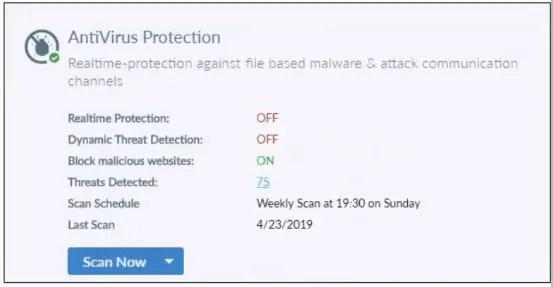
Refer to the exhibit.

Based on the settings shown in the exhibit what action will FortiClient take when it detects that a user is trying to download an infected file?

Correct Answer: D. Allows the infected file to download without scan
Explanation:

Block Malicious Website has nothing to do with infected files. Since Realtime Protection is OFF, it will be allowed without being scanned.

Based on the settings shown in the exhibit:

Realtime Protection: OFF

Dynamic Threat Detection: OFF

Block malicious websites: ON

Threats Detected: 75

The 'Realtime Protection' setting is crucial for preventing infected files from being downloaded and executed. Since 'Realtime Protection' is OFF, FortiClient will not actively scan files being downloaded. The setting 'Block malicious websites' is intended to prevent access to known malicious websites but does not scan files for infections.

Therefore, when a user tries to download an infected file, FortiClient will allow the file to download without scanning it due to the Realtime Protection being OFF.

Reference

FortiClient EMS 7.2 Study Guide, Antivirus Protection Section

Fortinet Documentation on FortiClient Real-time Protection Settings


Question 2

An administrator configures ZTNA configuration on the FortiGate. Which statement is true about the firewall policy?

Correct Answer: A. It redirects the client request to the access proxy.
Explanation:

'The firewall policy matches and redirects client requests to the access proxy VIP' https://docs.fortinet.com/document/fortigate/7.0.0/new-features/194961/basic-ztna-configuration


Question 3

An administrator has lost web access to the FortiClient EMS console, and the web page to access to the console is timing out.

How can the administrator gather information to investigate the issue? (Choose one answer)

Correct Answer: A. Use the CLI diagnostic tool on the EMS server.
Explanation:

According to the FortiClient EMS Administrator Study Guide and official Technical Tips from Fortinet, when the web console is inaccessible (e.g., timing out), the administrator must use tools available directly on the server's operating system (CLI) to gather diagnostic information.

1. Why the CLI Diagnostic Tool (Answer A) is the Correct Choice:

Availability during Outage: When the GUI is unreachable, the standard 'Generate Diagnostic Logs' option within the EMS interface is also unavailable.

Windows-based EMS: The administrator can manually run the EMSDiagnosticTool.exe located at C:\Program Files (x86)\Fortinet\FortiClientEMS\. This tool collects server information, Windows events, and EMS-specific logs into a compressed file for investigation.

Linux-based EMS (v7.4+): For newer versions running on Linux, the administrator can use the CLI command: sudo /opt/forticlientems/bin/diagnostic_tool -o /tmp/diag to generate a diagnostic package.

Service Verification: The CLI also allows administrators to verify if critical services (like fcems, apache2, or postgres) are running or if remote access has been disabled using the emscli utility.

2. Why Other Options are Incorrect:

B . Download webserver logs from PostgreSQL: PostgreSQL is the database engine for EMS, not the web server. While database logs are useful, they are not the primary method for gathering general 'diagnostic information' and would typically be collected as part of the CLI diagnostic tool output rather than downloaded directly from the DB.

C . Diagnostic logs option from the GUI: This option is impossible to use if the administrator has lost web access and the page is timing out.

D . Download log generator from support site: While Fortinet provides various tools on their support site, the EMS Diagnostic Tool is natively installed with the FortiClient EMS software and is the primary, documented method for troubleshooting the EMS server itself.


Question 4

Which two statements are true about ZTNA? {Choose two.)

Correct Answer: B. ZTNA provides role-based access.; C. ZTNA provides a security posture check.
Explanation:

ZTNA (Zero Trust Network Access) is a security architecture that is designed to provide secure access to network resources for users, devices, and applications. It is based on the principle of 'never trust, always verify,' which means that all access to network resources is subject to strict verification and authentication.

Two functions of ZTNA are:

ZTNA provides a security posture check: ZTNA checks the security posture of devices and users that are attempting to access network resources. This can include checks on the device's software and hardware configurations, security settings, and the presence of malware.

ZTNA provides role-based access: ZTNA controls access to network resources based on the role of the user or device. Users and devices are granted access to only those resources that are necessary for their role, and all other access is denied. This helps to prevent unauthorized access and minimize the risk of data breaches.


Question 5

Which component or device shares device status information through ZTNA telemetry?

Correct Answer: A. FortiClient
Explanation:

FortiClient communicates directly with FortiClient EMS to continuously share device status information through ZTNA telemetry.


Question 6

Refer to the exhibit.

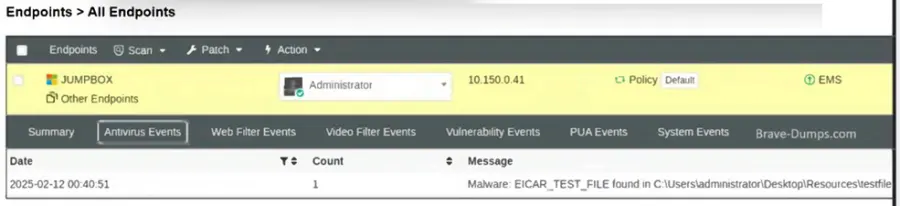
You provide a webserver hosting service. An endpoint downloads a test file, testfile.txt, that gets blocked by FortiClient.

Which configuration can you use to make the file accessible on the endpoint? (Choose one answer)

Correct Answer: D. Add the file to the allowlist in quarantine management on FortiClient EMS.
Explanation:

According to the FortiClient EMS 7.2/7.4 Administration Guide (specifically the Quarantine Management and Malware Protection sections), the correct administrative workflow to restore a blocked file and ensure it is no longer flagged as malicious is to use the Quarantine Management feature on the EMS server.

1. Analysis of the Exhibit

Event Type: The exhibit shows an Antivirus Event where a file named testfile.txt was flagged as Malware: EICAR_TEST_FILE.

Location: The file was found in a local user directory (C:\Users\administrator\Desktop\Resources\testfile.txt).

System State: The endpoint is managed by EMS (indicated by the Policy: Default and EMS status icons).

2. Why Option D is the Correct Choice:

Centralized Control: In a managed environment, the administrator uses the EMS console to oversee security incidents. To restore a file that has been quarantined, the administrator must navigate to Quarantine Management > Files.

Allowlist & Restore Action: By selecting the specific blocked file (testfile.txt) and clicking Allowlist & Restore, two things happen simultaneously:

Restoration: EMS sends a command to the FortiClient endpoint to release the file from the local quarantine folder and return it to its original path.

Allowlisting: The file's hash is added to the Allowlist (managed under Quarantine Management > Allowlist), which prevents FortiClient from re-quarantining the file during future real-time or on-demand scans.

Accessibility: This is the documented method to make a file 'accessible on the endpoint' while ensuring it is not immediately re-blocked by the security engine.

3. Why Other Options are Incorrect:

A . Restore access directly using FortiClient: While FortiClient has a local quarantine tab, the 'Release' button is typically greyed out or restricted when the client is managed by EMS to ensure centralized security policy enforcement.

B . Allow the webserver URL in the exclusion list: The exhibit shows an Antivirus/Malware event, not a Web Filter event. The file has already been downloaded to the local disk and is being blocked by the Real-Time Protection engine, so a Web Filter URL exclusion would have no effect on the local file block.

C . Exclude testfile.txt from the malware protection profile: While adding a path exclusion to the Malware Protection profile is a valid way to prevent future scans of a directory, it does not automatically restore a file that has already been moved to quarantine. The proper workflow for an existing block is to use the Quarantine Management tool first.

Question 7

An administrator installs FortiClient EMS in the enterprise.

Which component is responsible for enforcing protection and checking security posture?

Correct Answer: C. FortiClient
Explanation:

Understanding FortiClient EMS Components:

FortiClient EMS manages and configures endpoint security settings, while FortiClient installed on the endpoint enforces protection and checks security posture.

Evaluating Responsibilities:

FortiClient performs the actual enforcement of security policies and checks the security posture of the endpoint.

Conclusion:

The component responsible for enforcing protection and checking security posture is FortiClient (C).


FortiClient EMS and endpoint security documentation from the study guides.

Question 8

Which Fortinet solution can you integrate FortiClient with to use the single sign-on mobility agent (SSOMA) feature? (Choose one answer)

Correct Answer: A. FortiAuthenticator
Explanation:

According to the FortiClient EMS 7.2/7.4 Administration Guide and FortiAuthenticator Study Guides, the Single Sign-On Mobility Agent (SSOMA) is a feature specifically designed to integrate with FortiAuthenticator to provide transparent, identity-based authentication.

1. Integration with FortiAuthenticator (Answer A)

The SSOMA Service: The mobility agent service is hosted on the FortiAuthenticator unit. Administrators must navigate to Fortinet SSO Methods > SSO > General on the FortiAuthenticator and toggle on Enable FortiClient SSO Mobility Agent Service.

Communication Protocol: FortiClient communicates with FortiAuthenticator via a specified TCP listening port (defaulting to 8001 or 8005) and uses a pre-shared key (secret key) for authentication.

Transparent Authentication: Once configured, the SSOMA on the endpoint automatically sends user logon information and IP address changes (such as WiFi roaming) to FortiAuthenticator. FortiAuthenticator then shares this information with FortiGate units to enforce identity-based security policies without the user needing to re-authenticate manually.

2. Modern Capabilities (Azure AD / Entra ID)

Cloud Integration: In FortiClient 7.2.1 and later, SSOMA supports native Azure AD (Entra ID). In this mode, the agent sends the Azure AD domain and tenant ID directly to FortiAuthenticator, allowing organizations to create identity-based policies for cloud-joined devices.

3. Note on FortiPAM (Option C)

Recent Updates: While recent FortiClient EMS 7.4 documentation mentions an 'Add FortiPAM agent to SSOMA' feature, this is an extension of the existing SSOMA framework. The core product that defines and runs the SSOMA service for general Single Sign-On (SSO) remains FortiAuthenticator.

4. Why Other Options are Incorrect

B . FortiSASE: While FortiSASE uses FortiClient for Secure Internet Access (SIA), it uses different mechanisms (like SAML or the SASE cloud portal) for user identity rather than the specific SSOMA agent service.

D . FortiNAC: FortiNAC uses FortiClient for persistent agent-based posture assessment and scanning, but it does not utilize the SSOMA mobility agent for user-to-IP mapping.


Question 9

What does FortiClient do as a fabric agent? (Choose two.)

Correct Answer: C. Provides application inventory; D. Automates Responses

Question 10

Which two VPN types can a FortiClient endpoint user inmate from the Windows command prompt? (Choose two)

Correct Answer: C. IPSec; D. SSL VPN
Explanation:

FortiClient supports initiating the following VPN types from the Windows command prompt:

IPSec VPN: FortiClient can establish IPSec VPN connections using command line instructions.

SSL VPN: FortiClient also supports initiating SSL VPN connections from the Windows command prompt.

These two VPN types can be configured and initiated using specific command line parameters provided by FortiClient.

Reference

FortiClient EMS 7.2 Study Guide, VPN Configuration Section

Fortinet Documentation on Command Line Options for FortiClient VPN