
Limited-Time Offer: Enjoy 50% Savings! Ends in 00h 00m 00s Coupon code: 50OFF
Skip to content

Free Microsoft Security Operations Analyst SC-200 Exam Questions

Page: 1 / 28 Total 408 questions

Want more questions? Get Premium Access.

Question 1

You plan to review Microsoft Defender for Cloud alerts by using a third-party security information and event management (SIEM) solution.

You need to locate alerts that indicate the use of the Privilege Escalation MITRE ATT&CK tactic.

Which JSON key should you search?

Correct Answer: A. Intent
Explanation:

Defender for Cloud alerts include a kill chain intent field that maps to MITRE ATT&CK tactics (for example, PrivilegeEscalation, Persistence, CredentialAccess). In the alert JSON this is exposed as intent; searching that key lets you filter for alerts where the tactic is Privilege Escalation.
Question 2

You have an Azure subscription that contains a Microsoft Sentinel workspace named WS1 and 100 virtual machines that run Windows Server.

You need to configure the collection of Windows Security event logs for ingestion to WS1. The solution must meet the following requirements:

* Capture a full user audit trail including user sign-in and user sign-out events.

* Minimize the volume of events.

* Minimize administrative effort.

Which event set should you select?

Correct Answer: D. Common
Explanation:

The Common event set is designed to provide a full user audit trail while reducing volume versus ''All events.'' It includes both sign-in (4624) and sign-out/logoff (4634) events. The Minimal set omits sign-out (and other audit events), so it wouldn't meet the requirement; Custom adds admin overhead, and All events increases volume unnecessarily.


Question 3

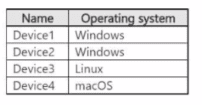
You have a Microsoft 365 subscription that uses Microsoft Defender for Endpoint and contains the devices shown in the following table.

You initiate a live response session on each device.

You need to collect a Defender for Endpoint investigation package from each device.

On which devices can you collect the package by running advanced live response commands from the command-line interface (CLI)?

Correct Answer: B. Device1, Device2, and Device3 only
Explanation:

In Microsoft Defender for Endpoint (MDE), a live response session allows security analysts to remotely connect to onboarded devices and run investigation commands. One of the key commands available is the ability to collect an investigation package, which includes forensic artifacts such as event logs, registry hives, running processes, network connections, and more.

According to Microsoft's official Defender for Endpoint documentation:

''Advanced live response capabilities, including running scripts and collecting investigation packages, are supported on Windows and Linux devices. macOS devices support basic live response commands only.''

This means that while Windows (Device1 and Device2) and Linux (Device3) devices fully support advanced live response capabilities (including collect investigation_package), macOS (Device4) devices currently support only a limited subset of commands---basic file and directory operations, without the ability to collect investigation packages.

Therefore:

Device1 (Windows) Supported

Device2 (Windows) Supported

Device3 (Linux) Supported

Device4 (macOS) Not supported

Final Answer: B. Device1, Device2, and Device3 only


Question 4

You have 500 on-premises Windows 11 devices that use Microsoft Defender for Endpoint

You enable Network device discovery.

You need to create a hunting query that will identify discovered network devices and return the identity of the onboarded device that discovered each network device.

Which built-in function should you use?

Correct Answer: D. SeenBy ()
Explanation:

In Microsoft Defender for Endpoint advanced hunting, when Network device discovery is enabled, onboarded devices can detect other devices on the same network. To build a hunting query that identifies discovered network devices and shows which onboarded device discovered each, you use the SeenBy() built-in function.

Microsoft's official Defender XDR KQL function documentation explains:

''The SeenBy() function returns the list of devices that have observed the entity (for example, IP address, URL, or network device). This function is typically used to correlate discovered devices with the onboarded devices that detected them.''

For example, you can write:

DeviceNetworkInfo

| where NetworkDeviceRole == 'Discovered'

| extend DiscoveringDevice = SeenBy()

This function effectively maps the discovered asset to the detecting (onboarded) device.

Other options are not applicable:

current_cluster,endpoint() --- not a valid Defender hunting function.

DeviceFromIP() --- resolves IP addresses to onboarded devices but does not show which device discovered another.

next() --- a general KQL operator for sequencing data, not for correlating network discovery events.

Therefore, to identify discovered network devices and the discovering endpoints, the correct built-in function is SeenBy().


Question 5

You need to ensure that the Group1 members can meet the Microsoft Sentinel requirements.

Which role should you assign to Group1?

Correct Answer: A. Microsoft Sentinel Automation Contributor
Explanation:

The case study requires:

''Ensure that the Group1 members can create and edit playbooks.''

In Microsoft Sentinel, the ability to create, edit, and assign playbooks is granted by the Microsoft Sentinel Automation Contributor role.

This role allows users to:

Create and manage automation rules,

Create and edit playbooks (Logic Apps) in the connected subscription,

Associate playbooks with Sentinel incidents or alerts.

By contrast:

Logic App Contributor allows Logic App creation but doesn't include Sentinel-level integration permissions.

Automation Operator can run playbooks but not edit or create them.

Sentinel Playbook Operator can execute playbooks but cannot modify or assign them.

Answer for Question 11: A. Microsoft Sentinel Automation Contributor


Question 6

You plan to create a custom Azure Sentinel query that will track anomalous Azure Active Directory (Azure AD) sign-in activity and present the activity as a time chart aggregated by day.

You need to create a query that will be used to display the time chart. What should you include in the query?

Correct Answer: B. bin
Explanation:

Explanation (concise): In Azure Sentinel (Microsoft Sentinel) KQL, to display a time chart aggregated by day, you bucket timestamps using bin(TimeGenerated, 1d) (often after a summarize), which is what the timechart visual expects. extend adds columns, makeset aggregates values into a set, and workspace is for cross-workspace queries---not for time bucketing.


Question 7

You have a Microsoft Sentinel workspace.

You need to prevent a built-in Advance Security information Model (ASIM) parse from being updated automatically.

What are two ways to achieve this goal? Each correct answer presents a complete solution.

NOTE: Each correct selection is worth one point.

Correct Answer: A. Redeploy the built-in parse and specify a CallerContext parameter of any and a SourceSpecificParse parameter of any.; D. Build a custom unify parse and include the build- parse version
Explanation:

In Microsoft Sentinel, Advanced Security Information Model (ASIM) parsers normalize different data types for analytics. Built-in parsers update automatically when Microsoft releases improvements. However, you can prevent automatic updates by redeploying or overriding them.

Per Microsoft Sentinel ASIM documentation:

You can redeploy a built-in parser with custom parameters (CallerContext=any, SourceSpecificParse=any) to create a local copy. This local redeployment is treated as a custom parser and will not be automatically updated.

Alternatively, you can build a custom unify parser that references a specific parser version. Custom parsers are user-managed and unaffected by ASIM's automated update pipeline.

Other options (like creating hunting queries or analytics rules) merely reference the parser and do not affect its update behavior.

Correct answers: A and D


Question 8

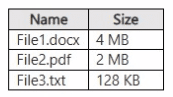
You have a Microsoft 365 subscription that uses Microsoft Security Copilot. You have the files shown in the following table.

Each file contains a copy of your company's compliance policy.

You need to ensure that Security Copilot responses are informed by the compliance policy. Which files can be uploaded to Security Copilot?

Correct Answer: E. File1.doocFile2.pdf, andFile3.txt
Explanation:

Security Copilot supports uploading files to inform responses about your organization's compliance policies. The files that can be uploaded include:

  • Text files (.txt) - Plain text files containing policy text
  • PDF files (.pdf) - PDF documents with compliance policies
  • Word documents (.docx) - Microsoft Word files with policy documentation

These file formats are supported because:

  • They are standard document formats commonly used for policy documentation
  • Security Copilot can parse and extract text from these formats
  • They provide readable, portable formats for policy sharing

Note: Other formats such as Excel files (.xlsx), PowerPoint presentations (.pptx), or image files may not be directly supported or may have limitations in how Copilot can process them. It's best to convert policy documents to .txt, .pdf, or .docx format before uploading.

Question 9

You have a Microsoft 365 subscription.

You have 1,000 Windows devices that have a third-party antivirus product installed and Microsoft Defender Antivirus in passive mode. You need to ensure that the devices are protected from malicious artifacts that were undetected by the third-party antivirus product. Solution: You configure Controlled folder access.

Does this meet the goal?

Correct Answer: B. No
Explanation:

Controlled Folder Access (CFA) is an anti-ransomware feature that protects specified folders from unauthorized modification by untrusted apps. While CFA helps prevent malicious processes from encrypting or modifying important files, it is a targeted hardening control and does not provide the broad detection/remediation capability required to ensure devices are protected from arbitrary malicious artifacts that a third-party antivirus missed. CFA blocks certain behaviors (file write/modify) for protected directories but won't detect, quarantine, or remove unknown malicious files system-wide. The documented purpose of CFA is behavior-based protection for protected folders, not full post-breach remediation or EDR-style blocking. Therefore enabling CFA alone does not satisfy the requirement of ensuring devices are protected from artifacts that were undetected by the third-party AV.


Question 10

You have a Microsoft Sentinel workspace.

You enable User and Entity Behavior Analytics (UFBA) by using Audit logs and Signin logs. The following entities are detected in the Azure AD tenant:

* App name: App1

* IP address: 192.168.1.2

* Computer name: Device1

* Used client app: Microsoft Edge

* Email address: user1@company.com

* Sign-in URL: https://www.company.com

Which entities can be investigated by using UEBA?

Correct Answer: B. IP address and email address only
Explanation:

Microsoft Sentinel UEBA (User and Entity Behavior Analytics) focuses on users and hosts (devices) and enriches data with contextual information.

When enabling UEBA with Audit logs and Signin logs, the only entities supported for investigation are:

User accounts (email addresses)

Hosts or devices (including IP addresses)

Other values like App name, Used client app, and Sign-in URL are attributes in log data but not tracked entities in UEBA investigations.

Answer: B. IP address and email address only


Question 11

You have an Azure subscription that contains a user named User1.

User1 is assigned an Azure Active Directory Premium Plan 2 license

You need to identify whether the identity of User1 was compromised during the last 90 days.

What should you use?

Correct Answer: B. the risky users report
Explanation:

The Risky users report in Microsoft Entra ID Protection provides visibility into users whose identities might have been compromised. It shows risk levels, risk states, and when risk detections occurred --- allowing you to investigate activity for the last 90 days.

The Risk detections report lists individual risk events but not overall user risk status, while risky sign-ins report only sign-in attempts, not the cumulative user risk.

Thus, to determine whether User1's identity was compromised during the last 90 days, use the risky users report.


Question 12

You have an Azure subscription that has Microsoft Defender for Cloud enabled.

You have a virtual machine that runs Windows 10 and has the Log Analytics agent installed.

You need to simulate an attack on the virtual machine that will generate an alert.

What should you do first?

Correct Answer: B. Copy a executable and rename the file as ASC_AlerTest_662jf10N,exe
Explanation:

The supported way to simulate a host-based alert for Microsoft Defender for Cloud / Azure Security Center is to create and run a benign executable that uses the well-known test filename pattern (commonly shown as ASC_AlertTest_...). Defender for Cloud's alert-validation guidance and simulators describe two supported approaches: (1) use the built-in alert simulator (API) to inject simulated alerts, and (2) exercise host detections by placing/running a specially-named test executable on the target machine so Defender's sensors recognize it and surface a security alert. Creating a copy of any harmless executable (for example, calc.exe) and renaming it to the test filename (the ASC_AlertTest pattern used in Microsoft guidance) is the minimal first step to produce a Defender-for-Cloud alert for validation. This approach requires the Log Analytics / MMA agent or Defender sensor already present on the VM so the telemetry reaches Defender for Cloud.

Why the other options are incorrect: an agent troubleshooting tool or changing MMA settings doesn't directly trigger a detection; the MMASetup -foo argument is not used for alert simulation; and a watchlist is just reference data (it won't generate alerts). For automated, programmatic simulations you can also call Defender for Cloud's Simulate Alerts API, but the quickest on-host validation with minimal administration is to copy/rename an executable to the ASC_AlertTest filename and run it so Defender generates the expected alert.

Note: Microsoft documentation also recommends using the Defender-for-Cloud alert simulator (REST/API) for bulk or scripted simulations; both methods assume the Defender sensors/agents are installed and reporting.


Question 13

You need to modify the anomaly detection policy settings to meet the Cloud App Security requirements. Which policy should you modify?

Correct Answer: C. Impossible travel
Explanation:

The requirement states that Cloud App Security (Defender for Cloud Apps) must determine whether a user's connection is anomalous based on tenant-level patterns, and the current false positives occur when users connect through two office egress points at the same time. These symptoms align with the Impossible travel anomaly detection policy, which learns normal sign-in geolocation patterns and flags sign-ins from distant locations within an unrealistically short time window. To meet the requirement and reduce false positives, you modify the Impossible travel policy settings---such as excluding trusted corporate IP ranges/VPN egress points and tuning sensitivity---so detections better reflect tenant-wide behavior rather than isolated user hops via different office exits. Policies like Activity from anonymous/suspicious IP addresses rely on threat-intel lists of anonymizers or known-bad sources and don't address the ''two-office'' scenario. Risky sign-in is part of Azure AD Identity Protection, not the MCAS anomaly policy to tune here. Thus, the policy to modify is Impossible travel.


Question 14

You have a Microsoft Sentinel workspace named SW1.

You need to identify which anomaly rules are enabled in SW1.

What should you review in Microsoft Sentine1?

Correct Answer: C. Analytics
Explanation:

To identify which anomaly rules are enabled in a Microsoft Sentinel workspace (here, SW1), you look at the Sentinel analytics configuration in the portal. In Microsoft's documentation ''Work with anomaly detection analytics rules in Microsoft Sentinel,'' it explains:

''You can now find anomaly rules displayed in a grid in the Anomalies tab in the Analytics page. ... On the Analytics page, select the Anomalies tab. ... Status -- whether the rule is enabled or disabled.'' Microsoft Learn

Thus, anomaly detection rules are a subtype of analytics rules in Sentinel, and they are surfaced under the Analytics area (in the Anomalies tab). That is where you can review which anomaly detection rules are active (enabled) or not.

By contrast:

Settings is used for workspace-wide configurations (e.g. enabling UEBA, toggling anomalies on/off).

Entity behavior is a separate feature (UEBA) for monitoring entities and their behavioral baselines, not the repository of which anomaly rules are enabled.

Content hub is the repository of shared analytics templates and solutions you can import; it does not list which rules are enabled in your workspace.

Therefore, the correct place to review enabled anomaly detection rules is C. Analytics (specifically under the Anomalies tab).


Question 15

You need to restrict cloud apps running on CLIENT1 to meet the Microsoft Defender for Endpoint requirements.

Which two configurations should you modify? Each correct answer present part of the solution.

NOTE: Each correct selection is worth one point.

Correct Answer: C. Advanced features from Settings in Microsoft Defender Security Center; D. the Cloud Discovery settings in Cloud App Security
Explanation:

To block unsanctioned cloud apps on Windows 10 endpoints with Microsoft Defender for Endpoint and Microsoft Defender for Cloud Apps (formerly Cloud App Security), you must enable and configure the product integration on both sides. First, in Microsoft Defender Security Center Settings Advanced features, turn on the Microsoft Defender for Cloud Apps integration (and ensure network protection prerequisites are met). This allows Defender for Endpoint to receive the unsanctioned app list and enforce endpoint-based blocking when users on CLIENT1 attempt to access those apps via the browser or client.

Second, in Defender for Cloud Apps Settings Cloud Discovery, configure the Microsoft Defender for Endpoint integration and enable Block unsanctioned apps. In Cloud Discovery, apps are discovered, assessed, and can be tagged as Unsanctioned. Once the MDE integration is enabled, that tag is exported to endpoints, which then enforce blocking based on the tenant's app catalog and policies.

Options A (Onboarding settings) are for enrolling devices and do not control app blocking behavior. B (Anomaly detection policies) govern behavioral detections (e.g., impossible travel, anonymous IP) and are unrelated to endpoint enforcement of app access. Therefore, the two configurations you must modify to meet the requirement ''block unsanctioned apps on Windows 10 computers by using Microsoft Defender for Endpoint'' are C. Advanced features in Microsoft Defender Security Center and D. Cloud Discovery settings in Cloud App Security.