
Limited-Time Offer: Enjoy 50% Savings! Ends in 00h 00m 00s Coupon code: 50OFF
Skip to content

Free VMware Horizon 8.x Professional 2V0-51.23 Exam Questions

Page: 1 / 9 Total 89 questions

Want more questions? Get Premium Access.

Question 1

Refer to the exhibit.
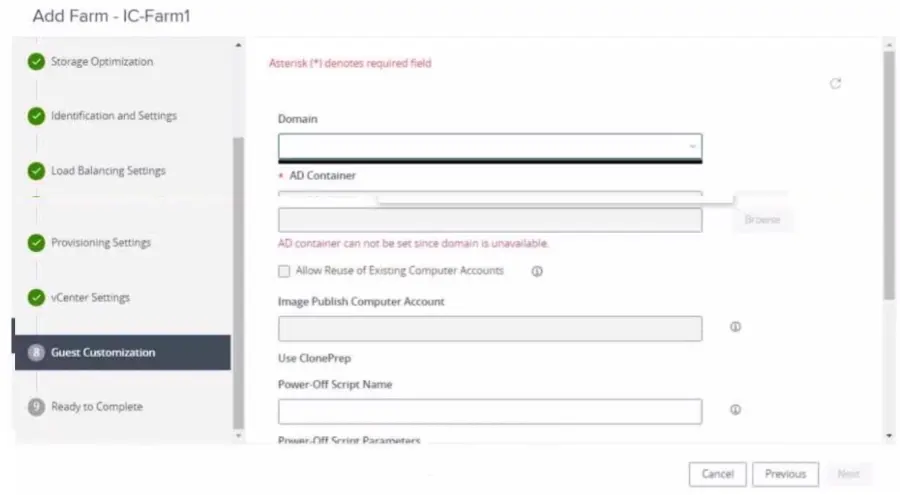
An administrator is trying to create an automated farm of instant-clone virtual machines using the Add Farm wizard. The administrator cannot proceed beyond the page displayed in the exhibit.

Which of the following could be the reason for the issue?

Correct Answer: B. The administrator may not have added an instant clone domain administrator to VMware Horizon.
Explanation:

The reason for the issue is that the administrator may not have added an instant clone domain administrator to VMware Horizon. This is a requirement for creating an automated farm of instant-clone virtual machines using the Add Farm wizard.

An instant clone domain administrator is a user account in Microsoft Active Directory that allows Connection Server to perform certain operations related to instant clones in Active Directory, such as joining instant-clone virtual machines to the domain, creating computer accounts, and deleting computer accounts. The administrator must create and configure this account in Active Directory and then specify the user name and password in VMware Horizon.

To add an instant clone domain administrator to VMware Horizon, the administrator needs to follow these steps:

In the Horizon Console, select Settings > Domains > Domain Accounts.

Click Add.

Enter the domain, user name, and password for the instant clone domain administrator.

After adding the instant clone domain administrator to VMware Horizon, the administrator can proceed with creating an automated farm of instant-clone virtual machines using the Add Farm wizard.

The other options are not the reason for the issue:

In the Add Farm wizard, the administrator may not have selected Automated Farm as farm type: This option is not relevant to the issue, as the farm type selection is done in a later page of the Add Farm wizard, after selecting the domain and the AD container. The page displayed in the exhibit is the Identification and Settings page, which is the first page of the Add Farm wizard.

The administrator did not prepare a RDSH golden image snapshot: This option is not relevant to the issue, as the RDSH golden image snapshot selection is done in a later page of the Add Farm wizard, after selecting the domain and the AD container. The page displayed in the exhibit is the Identification and Settings page, which does not require a RDSH golden image snapshot.

The administrator did not add the RDSH golden image to the correct domain: This option is not relevant to the issue, as the RDSH golden image domain selection is done in a later page of the Add Farm wizard, after selecting the domain and the AD container. The page displayed in the exhibit is the Identification and Settings page, which does not require a RDSH golden image domain.


Question 2

An administrator is configuring load-balancing settings in Horizon Console for a RDSH Farm. Which two check boxes can be selected to influence the load balancing behavior? (Choose two.)

Correct Answer: B. The use custom script setting for customized RDSH load balancing.; C. The Include Session Count setting to include the session count on the RDSH for load balancing.
Explanation:

Load balancing is a feature that allows administrators to distribute the load of published desktop and application sessions across multiple RDS hosts in a farm. Load balancing can improve the performance and availability of the sessions and the hosts. Horizon offers two ways of configuring load balancing for RDS hosts: using load balancing settings in Horizon Console or using custom load balancing scripts.

The load balancing settings in Horizon Console allow administrators to define how Horizon calculates the server load index, which indicates the load on each RDS host. The server load index can range from 0 to 100, where 0 represents no load and 100 represents full load. A server load index of -1 indicates that load balancing is disabled. Horizon uses the server load index to determine which RDS host is the best candidate for placing a new session request.

The load balancing settings in Horizon Console include the following check boxes that can be selected to influence the load balancing behavior:

The use custom script setting for customized RDSH load balancing: This setting allows administrators to override the default behavior of the load balancing settings and control the placement of new sessions by writing and configuring custom load balancing scripts. The custom scripts must write the server load index to a specific registry key on each RDS host. Horizon will use the value from the registry key instead of calculating it from the other settings.

The Include Session Count setting to include the session count on the RDSH for load balancing: This setting allows administrators to include the number of sessions (connected, pending, and disconnected) on each RDS host as a factor in calculating the server load index. By default, Horizon uses the following formula to calculate the server load index based on the session count: (connected sessions + pending sessions + disconnected sessions)/ (maximum session count). If the maximum session count is configured as unlimited, Horizon falls back to using the absolute number of total sessions.

The other options are not check boxes that can be selected in the load balancing settings in Horizon Console:

The floating dynamic host profile setting, created in the vSphere profile section: This option is not related to load balancing for RDS hosts, but rather to dynamic environment manager for instant-clone desktops. A dynamic host profile is a vSphere profile that contains configuration settings for instant-clone desktops, such as network settings, domain join settings, and customization scripts. A floating dynamic host profile is a type of dynamic host profile that applies to floating desktop pools, where users are assigned a random desktop from a pool at each login.

The Horizon DRS setting for fully automated vSphere load balancing: This option is not related to load balancing for RDS hosts, but rather to distributed resource scheduler (DRS) for vSphere clusters. DRS is a feature that monitors and balances the CPU and memory resources across multiple ESXi hosts in a cluster. DRS can also migrate virtual machines between hosts using vMotion to optimize resource utilization and performance. Horizon DRS is an extension of DRS that integrates with Horizon and provides additional capabilities, such as affinity rules, maintenance mode, and power management. Horizon DRS can be configured with different automation levels, such as fully automated, partially automated, or manual.


Question 3

After creating a global entitlement, an administrator clicks on the name and navigates to Local Pools. The administrator clicks on Add but no local pools show up in the selection windows.

What can be one explanation for this?

Correct Answer: C. Global entitlements setting must be matching with the local pool setting, otherwise they cannot be selected.
Explanation:

For a global entitlement to include local desktop pools, the settings and configurations of the global entitlement must be compatible with those of the local pools. If there is a mismatch in settings, such as display protocol, user assignment type (dedicated or floating), or other critical configurations, the local pools will not appear as selectable options when adding them to a global entitlement.


Question 4

Which two scenarios are appropriate for a cloud implementation of a VDI solution over an on-premises solution? (Choose two.)

Correct Answer: C. The organization needs to quickly scale-up in disparate geographical locations.; D. The organization has limited CapEx budget.
Explanation:

A cloud implementation of a VDI solution over an on-premises solution is appropriate for the following scenarios:

The organization needs to quickly scale-up in disparate geographical locations. A cloud VDI solution can provide faster provisioning, deployment, and management of virtual desktops and applications across multiple regions and data centers.A cloud VDI solution can also offer better performance, availability, and user experience for remote and mobile workers who need to access their desktops and applications from anywhere and any device12.

The organization has limited CapEx budget. A cloud VDI solution can reduce the upfront capital expenditure (CapEx) required to purchase, install, and maintain the hardware and software infrastructure for a VDI solution. A cloud VDI solution can also lower the operational expenditure (OpEx) by shifting the responsibility of managing, updating, and securing the VDI infrastructure to the cloud provider.A cloud VDI solution can offer flexible and predictable pricing models based on usage, subscription, or consumption13.

The other scenarios are not appropriate for a cloud implementation of a VDI solution over an on-premises solution because:

The organization already has infrastructure to support a VDI. If the organization has already invested in the hardware and software resources to support a VDI solution, it may not be cost-effective or feasible to migrate to a cloud VDI solution.The organization may also have existing policies, processes, and workflows that are tailored to the on-premises VDI solution and may not be compatible with the cloud VDI solution4.

The organization needs to setup high availability and disaster recovery. While a cloud VDI solution can provide high availability and disaster recovery capabilities, it may not be sufficient or reliable for some organizations that have strict requirements for data protection, compliance, and business continuity.An on-premises VDI solution can offer more control, customization, and security over the backup, replication, and restoration of the VDI data and applications in the event of a disaster5.

The organization controls highly confidential data. A cloud VDI solution may pose some risks or challenges for organizations that handle sensitive or regulated data, such as financial, healthcare, or government data. A cloud VDI solution may not meet the compliance standards or regulations that apply to the organization's data. A cloud VDI solution may also expose the organization's data to potential breaches, leaks, or unauthorized access by third parties.An on-premises VDI solution can provide more visibility, governance, and encryption over the organization's data6.


Question 5

Which three steps are required to entitle user and groups to pools? (Choose three.)

Correct Answer: B. During pool creation in the entitlement pane, click on add, search for users and groups in the Active Directory, continue and finish the pool creation.; D. Navigate to Inventory > Desktops > check mark a pool > click on Add Entitlement.; E. Navigate to Users and Groups > Entitlements > click on Entitlements > click on Add Entitlements, search for users and groups in the Users pane and add the desired desktop pool in the next pane Desktop Pools.
Explanation:

To entitle users and groups to pools, you need to perform the following steps:

During pool creation in the entitlement pane, click on add, search for users and groups in the Active Directory, continue and finish the pool creation.This option allows you to entitle users and groups to a desktop or application pool at the same time as you create the pool3.

Navigate to Inventory > Desktops > check mark a pool > click on Add Entitlement.This option allows you to add entitlements to an existing desktop or application pool after you create the pool4.

Navigate to Users and Groups > Entitlements > click on Entitlements > click on Add Entitlements, search for users and groups in the Users pane and add the desired desktop pool in the next pane Desktop Pools.This option allows you to review and manage the entitlements for users and groups from a single location5.

The other options are not required or valid for entitling users and groups to pools.Running the Active Directory entitlement script in the golden master is not necessary as Horizon 8 automatically synchronizes with Active Directory domains that are configured in Horizon Console6.Specifying the desired Active Directory OU for the VMs during pool creation does not automatically add the preconfigured associated user group to the Horizon entitlements as you still need to select the users or groups from the search results7.Reference:=3: VMware Horizon 8 Documentation:Add Entitlements During Pool Creation4: VMware Horizon 8 Documentation:Add Entitlements After Pool Creation5: VMware Horizon 8 Documentation:Review and Manage Entitlements6: VMware Horizon 8 Documentation:Active Directory Requirements for Horizon Connection Server7: VMware Horizon 8 Documentation:Create an Automated Desktop Pool


Question 6

When integrating a Linux OS based desktop into Active Directory, which three of the following can be used? (Choose three.)

Correct Answer: B. Winbind Domain Join; D. Windows Domain Join; E. System Security Services Daemon (SSSD) LDAP authentication against the AD
Explanation:

Integrating a Linux OS-based desktop into Active Directory can be achieved using Winbind for domain joining and authentication, Windows Domain Join through tools like Samba, and System Security Services Daemon (SSSD) for LDAP authentication against Active Directory. These methods enable Linux desktops to participate in a Windows-centric environment, allowing for centralized authentication and management.


Question 7

Question 8

Which two client types have the lowest cost of ownership and are easier to manage deployments, perform firmware updates, and monitor. (Choose two.)

Correct Answer: A. Thin Clients; D. Zero Clients
Explanation:

Thin Clients and Zero Clients have the lowest cost of ownership and are easier to manage due to their minimalistic design, which lacks a full operating system, resulting in fewer components that require updates. These clients are designed for remote desktop services like VMware Horizon, where the computing work is done on the server side, making firmware updates and monitoring simpler and more centralized.


Question 9

What is the effect of changing any VMware Blast policy that cannot be changed in real time?

Correct Answer: D. Microsoft GPO update rules apply and GPOs are updated manually or by restarting the Horizon Agent.
Explanation:

VMware Blast policy settings are stored in the registry key HKLM\Software\Policies\VMware, Inc.\VMware Blast\Config on the remote desktops or RDS hosts that use the VMware Blast display protocol. These settings can be configured by using the VMware Blast ADMX template file (vdm_blast.admx) and applying it through Microsoft Group Policy Object (GPO). Some of these settings can be changed in real time, which means that they take effect immediately after the policy is applied, without requiring a reboot or a reconnection of the Horizon Client. However, some of these settings cannot be changed in real time, which means that they require a reboot or a reconnection of the Horizon Client to take effect.

The effect of changing any VMware Blast policy that cannot be changed in real time is that the Microsoft GPO update rules apply and GPOs are updated manually or by restarting the Horizon Agent. This means that the new policy settings will not be applied until one of the following events occurs:

The Horizon Agent service is restarted on the remote desktop or RDS host. This can be done manually by using the Services console or the command-line tool sc.exe, or automatically by using a scheduled task or a script.

The remote desktop or RDS host is rebooted. This can be done manually by using the Restart option in Windows, or automatically by using a scheduled task or a script.

The Group Policy refresh interval is reached. This is a configurable time interval that determines how often the system checks for and applies new or changed GPOs. By default, this interval is 90 minutes for domain members and 5 minutes for domain controllers, with a random offset of 0 to 30 minutes. This interval can be modified by using the Group Policy refresh interval for computers setting in the Computer Configuration\Administrative Templates\System\Group Policy folder of the Group Policy Management Console.

Therefore, to ensure that the VMware Blast policy settings that cannot be changed in real time are applied as soon as possible, it is recommended to restart the Horizon Agent service or reboot the remote desktop or RDS host after applying the policy.


Question 10

What must be implemented on all Connection Servers for logon segment information to be populated in the Horizon Helpdesk Tool?

Correct Answer: B. vdmadmin -I -timingProfiler -enable
Explanation:

To populate logon segment information in the Horizon Helpdesk Tool, the Horizon administrator must enable the timing profiler on all Connection Servers. This is done by executing the command vdmadmin -I -timingProfiler -enable. The timing profiler collects detailed timing data about the logon process, which is then displayed in the Horizon Helpdesk Tool, allowing administrators to troubleshoot and improve logon times.