
Limited-Time Offer: Enjoy 50% Savings! Ends in 00h 00m 00s Coupon code: 50OFF
Skip to content

Free Workday Pro Time Tracking Exam Workday-Pro-Time-Tracking Exam Questions

Page: 1 / 6 Total 55 questions

Want more questions? Get Premium Access.

Question 1

On what Time Tracking component can you enable Optional Out Times for a group of workers?

Correct Answer: C. Time tracking eligibility rule
Explanation:

Comprehensive and Detailed 150 to 250 words of Explanation From WorkdayPro Time Tracking Knowledge:

The correct answer is C. Time tracking eligibility rule. In Workday Time Tracking, a time tracking eligibility rule is used to define which workers receive specific time tracking behavior and configurations. Because the question asks where you can enable Optional Out Times for a group of workers, the key phrase is ''for a group of workers.'' That grouping and assignment logic is controlled through the eligibility rule, which determines what time tracking setup applies to a worker population based on staffing attributes or eligibility criteria.

A time entry template controls how time is entered and displayed, such as layout and entry behavior, but it is typically applied through broader time tracking configuration rather than being the worker-grouping mechanism itself. A time entry code identifies the kind of time being recorded, such as regular, training, or on-call time, and does not control Optional Out Times at the worker-group level. A worktag is used for classification and reporting, not for enabling time entry behavior settings.

So, when Workday asks which component allows you to enable a feature like Optional Out Times for a specific population of workers, the correct setup component is the Time Tracking Eligibility Rule, because it is the object used to apply time tracking options to defined worker groups.

Question 2

You are creating a time block conditional calculation.

What business object can you use to check for adjusted, calculated time?

Correct Answer: A. Time Block
Explanation:

The correct answer is A. Time Block.

In Workday Time Tracking, a Time Block Conditional calculation evaluates conditions at the individual time entry level. When the requirement is to check for adjusted, calculated time, the relevant information is associated with the actual time block record, because that is where Workday stores the entered time and the calculation outcomes tied to that specific entry. A Time Block is the most granular time-related business object and is the correct object to use when testing whether a block has been adjusted or contains calculated results.

This is important because Time Block Conditional logic is intended to inspect and act on specific time blocks rather than broader summarized periods. If you need to determine whether a worker's time block reflects adjusted calculated time, the evaluation must happen on the Time Block object itself.

The other options are not correct for this use case. Time Shift relates more to shift structure or scheduling context, not the direct record used for conditional evaluation of calculated time. Time Day summarizes time at the day level and is used for daily comparisons or accumulations. Time Week is used for weekly totals and thresholds. Neither Time Day nor Time Week is the right object for checking an individual adjusted, calculated time block.

Therefore, the correct business object is Time Block.


Question 3

What report should you use to check if a worker is eligible for more than one time entry template at a given time?

Correct Answer: C. Audit - Workers with Multiple Time Entry Templates
Explanation:

The correct answer is C. Audit - Workers with Multiple Time Entry Templates.

In Workday Time Tracking, a worker should normally be eligible for only one active time entry template at a time. The time entry template controls how the worker records time, such as hours versus in/out entry, required fields, worktags, and related entry behavior. If a worker becomes eligible for more than one template simultaneously, it can create inconsistent time entry behavior and configuration conflicts. To detect this kind of setup issue, Workday provides a dedicated audit report: Audit - Workers with Multiple Time Entry Templates.

This report is specifically designed to identify workers whose eligibility rules cause overlap across templates. That makes it the best tool for administrators who are validating setup and trying to prevent template assignment conflicts before they affect time entry.

Option A, All Time Entry Templates, lists templates but does not specifically identify workers with overlapping eligibility. Option B, All Time Approval Templates, relates to approval routing, not time entry template eligibility. Option D, View Worker's Time Eligibility, can help review an individual worker's eligibility setup, but it is not the primary audit report used to systematically find workers with multiple time entry templates at the same time.

So the most accurate and purpose-built report is C.


Question 4

You have configured a Time Calculation Tag to tag all hours worked on the seventh consecutive day.

Where will these hours display in the Worker's Time Entry Calendar?

Correct Answer: B. On the Calculated tab in the Time Block in the Worker's Time Entry Calendar on the day the hours were worked.
Explanation:

The correct answer is B. On the Calculated tab in the Time Block in the Worker's Time Entry Calendar on the day the hours were worked.

In Workday Time Tracking, a Time Calculation Tag is part of the calculation framework used to identify or classify time after Workday evaluates the entered hours through configured calculation logic. When a rule tags hours worked on the seventh consecutive day, that result is not treated as the original entered time itself. Instead, it is displayed as a calculated result tied to the time block for the relevant date.

That is why these tagged hours appear on the Calculated tab of the worker's time block. The entered line remains the source time entry, while the calculated section shows the results produced by Workday's time calculations, such as tagged hours, overtime, premiums, or other rule-based outcomes.

Option D is incorrect because the top line of the time block is generally where the worker's entered time appears, not the detailed calculation-tag output. Option A is incorrect because the Work Schedule Calendar reflects planned schedule information, not calculated time-tag results. Option C is incorrect because View Worker's Time Eligibility is used to review assigned time tracking components, not to display daily calculated tagged hours.

So the correct display location is the Calculated tab in the time block.


Question 5

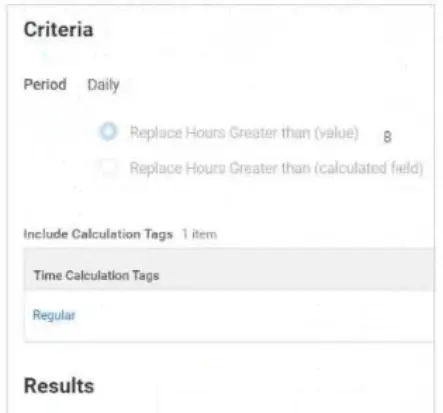
Refer to the following scenario to answer the question below.

Table is labeled Include Calculation Tags 1 Item

The Time Calculation Tag included is Regular.

Results:

Add Tags field includes Daily Overtime.

Remove Tags field is empty.

Time Day Based On field selection is Calculated Date

The Daily Overtime calculation is tagging hours with both the Regular and Daily Overtime tags. This calculation should only tag hours with the Daily Overtime tag.

What should you edit in the calculation?

Correct Answer: D. Remove Tags
Explanation:

The correct answer is D. Remove Tags. In the scenario, the calculation is built to evaluate time that currently has the Regular calculation tag because Include Calculation Tags contains Regular. That part is correct, since the calculation must first identify which hours are eligible to be converted into daily overtime. The problem is in the result of the calculation: the hours are being given the Daily Overtime tag, but the original Regular tag is not being removed. As a result, the same hours appear with both tags.

In Workday Time Tracking, Add Tags is used to place a new calculation tag on qualifying hours, while Remove Tags is used to take away a tag that should no longer remain on those hours after the calculation runs. For a daily overtime rule, once hours greater than the threshold qualify as overtime, those hours should no longer stay tagged as Regular. Therefore, you must update the calculation to remove the Regular tag in the Remove Tags field.

The other options do not solve the issue. Period only defines the time frame, and Include Calculation Tags controls which hours are evaluated, not which old tag is cleared from the result.


Question 6

You have configured a Time Entry Code and assigned a default calculation tag of Callback Guaranteed Time.

What happens when a worker reports time using this Time Entry Code?

Correct Answer: D. The hours are tagged with the Callback Guaranteed Time Calculation Tag.
Explanation:

The correct answer is D. The hours are tagged with the Callback Guaranteed Time Calculation Tag.

In Workday Time Tracking, when a default calculation tag is assigned to a Time Entry Code, that tag is automatically applied to time reported with that code unless other calculation logic changes the outcome. This means the time entry itself carries the designated calculation tag into the time calculation process. In this case, if the Time Entry Code has a default calculation tag of Callback Guaranteed Time, then any hours entered using that code will be tagged with Callback Guaranteed Time.

This setup is commonly used to ensure specific kinds of time are consistently identified for later calculation logic, such as guaranteed callback minimums, premiums, or special pay treatment. The tag itself does not automatically determine the pay rate; instead, it marks the hours so the relevant time calculations can recognize and process them correctly.

Option A is incorrect because the worker's Work Schedule Calendar does not control the default calculation tag placed on a Time Entry Code. Option B is incorrect because the Time Entry Template does not retag the reported time to another default code in this way. Option C is incorrect because assigning a calculation tag alone does not directly guarantee payment at time and a half; pay outcomes depend on downstream calculation and payroll configuration.


Question 7

What EIB is used for loading legacy time entry data for configuration testing?

Correct Answer: B. Import Reported Time Blocks
Explanation:

The correct answer is B. Import Reported Time Blocks.

In Workday Time Tracking, when an organization needs to load legacy time entry data into the tenant for configuration testing, the appropriate Enterprise Interface Builder (EIB) is Import Reported Time Blocks. This EIB is specifically designed to bring in historical or external reported time entries so that organizations can validate how Workday processes time calculations, overtime rules, validations, approvals, and downstream integrations using realistic data.

This is especially useful during implementation or testing cycles when the team wants to confirm that configured time entry templates, time calculations, and administrative processes behave correctly with actual time data patterns from the legacy system. By importing reported time blocks, Workday can apply the configured rules and allow testers to compare expected and actual outcomes.

The other options are not intended for loading time entry history. Payroll Input is used for payroll-related input data, not for time entry blocks. Put Period Schedule is used to maintain or load period schedule information. Put Holiday Calendar is for holiday setup, not worker time records. None of those options load the detailed reported worked-time entries needed for time tracking configuration testing.

Therefore, the correct EIB for loading legacy time entry data into Workday Time Tracking is Import Reported Time Blocks.


Question 8

What restrictions apply to the Adjust Calculated Time task?

Correct Answer: C. A worker cannot adjust their own calculated time.
Explanation:

The correct answer is C. A worker cannot adjust their own calculated time.

In Workday Time Tracking, the Adjust Calculated Time task is an administrative function used to correct or override calculated time results, such as overtime or premium outcomes, when the automatically generated result needs manual intervention. Because this task can directly change calculation outcomes that affect pay, compliance, and reporting, Workday restricts it from being performed by the worker on their own time. Instead, it is intended for authorized administrative roles, such as a time tracking administrator or another appropriately secured user.

Option A is incorrect because time off is not generally the focus of the Adjust Calculated Time task; this task is used for calculated worked-time results, not for adjusting absence or time-off entries in the same way. Option B is not the best restriction stated here because period locking rules relate to broader time-entry administration and do not define the core restriction of who can perform the task. Option D is incorrect because once calculated time is manually adjusted, it is no longer simply treated the same as fully system-calculated normal time; the adjustment reflects an administrative override.

Therefore, the key restriction that applies is that a worker cannot adjust their own calculated time, making C the correct answer.


Question 9

You have configured a Time Calculation that tags all hours reported on either Saturday or Sunday as Weekend Premium hours. A second time calculation tags all hours worked over 8 hours on Saturday or Sunday as double time.

What task do you use to verify that these two time calculations are prioritized correctly?

Correct Answer: D. Maintain Time Calculation Priorities
Explanation:

The correct answer is D. Maintain Time Calculation Priorities.

In Workday Time Tracking, when multiple time calculations interact with each other, the order of execution is extremely important. In this example, one calculation tags all Saturday and Sunday hours as Weekend Premium, while another tags hours over 8 on those same days as double time. Since both calculations may evaluate the same time, you must confirm that they run in the correct sequence so the desired tags are applied properly and downstream results are accurate.

The task used specifically to review and manage the execution order of time calculations is Maintain Time Calculation Priorities. This is where Workday administrators verify whether one calculation runs before or after another based on its configured priority value. If the priorities are incorrect, calculations may not tag or replace hours as expected.

The other options are not the correct tool for this purpose. View Time Calculation Group helps review grouped calculations, but not the priority maintenance itself. Maintain Time Calculation Tags is used for tag configuration, not sequencing. Maintain Time Accumulator Threshold Rule Priorities applies to threshold rule priorities, which is a different configuration area and not the general task for validating calculation order between standard time calculations.

Therefore, the correct task is Maintain Time Calculation Priorities.


Question 10

The tenant includes a daily overtime calculation (regular hours > 8) with the priority of USA0045. You need to configure a daily double time calculation (regular hours > 12).

What priority should you assign to the Daily Double Time calculation so it calculates before the Daily Overtime?

Correct Answer: A. USA0040
Explanation:

The correct answer is A. USA0040.

In Workday Time Tracking, time calculation priority determines the order in which calculations are processed. A calculation with a lower priority value runs before a calculation with a higher value. Since the existing Daily Overtime calculation has a priority of USA0045, any new calculation that must run earlier needs a priority number lower than 0045.

Because the organization wants the Daily Double Time rule for hours greater than 12 to calculate before Daily Overtime, the proper priority is USA0040. This ensures that the double time logic evaluates first and can correctly identify the hours that should receive double time treatment before the broader overtime calculation processes the remaining qualifying hours.

The other options are incorrect for the following reasons. USA0045 would place the new calculation at the same priority as Daily Overtime, which does not ensure the correct processing sequence. USA0050 and USA0055 are higher values, so they would run after the overtime calculation, which could lead to incorrect tagging or pay treatment of hours above 12.

In Workday, correct priority sequencing is critical whenever multiple calculations interact, especially for overtime and premium scenarios. Therefore, the correct priority is USA0040.